Block out the shot.
Get the finished video.
Tell the vnay assistant what you want. It builds the scene in your Blender — sets, posed people, lights and the camera move — then turns your camera view into a real-looking video that follows it exactly.
“A wooden pier at sunset. A woman walks along it toward the lighthouse at the end, the camera follows behind her, low. 6 seconds.”
From that one sentence, the assistant built the left side in Blender — pier, lighthouse, a walking mannequin and a low tracking camera — then made the right side from it. Same layout, same timing, same camera move.
You direct. It builds and films.
No modelling, no lighting setup, no render farm. The assistant does the busy work in your scene, and you can step in and move anything by hand at any time.
Say the shot
Type it in Blender's sidebar, in your own words.
A rooftop at night. Two friends talk by the railing, the camera slowly circles them.
It builds it in your Blender
Real objects in your scene: buildings, cars, mannequins that walk and pose, lights and a keyframed camera. You see it appear live.
FreeYour computer films the camera
A fast preview render of your camera, made on your own computer — no strong graphics card needed. It's the guide for the final video.
FreeYou get the finished video
Seedance 2.5 turns it into a real-looking video that keeps your layout, timing and camera. It lands in your vnay project — and back in your scene if you want.
Uses credits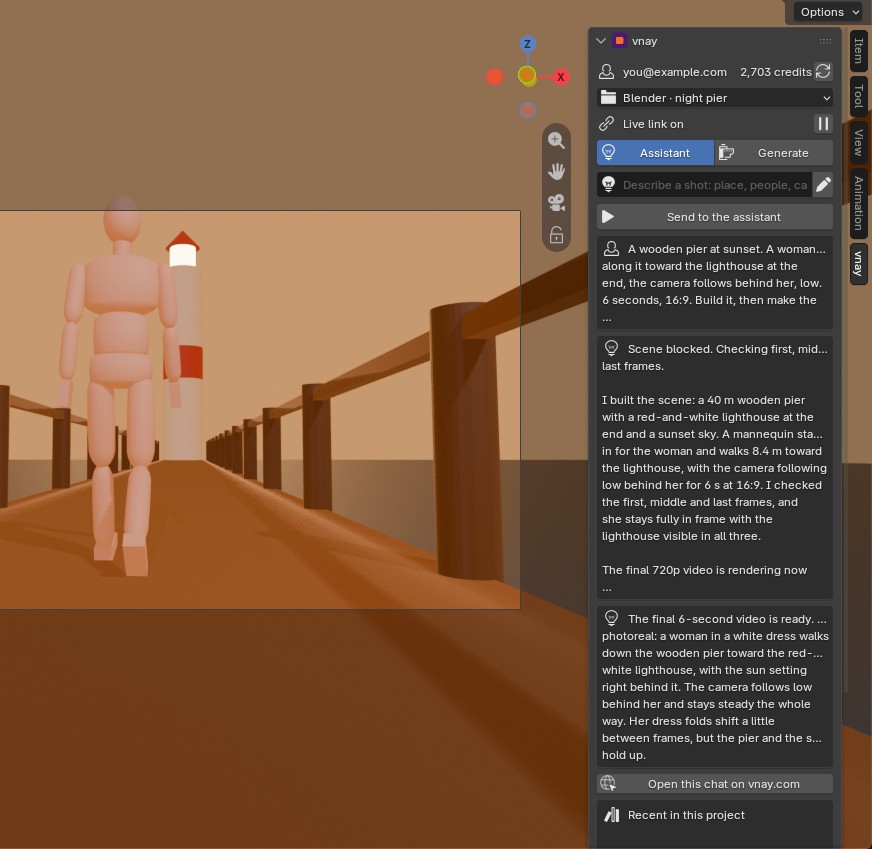
The vnay tab. Press N.
AssistantSay what you want. It builds, changes, renders and makes the video — and tells you what it did.
GeneratePick any model — Seedance, Kling, Veo, GPT Image — and press Generate. Tick “Use my camera view” and your scene becomes the guide.
Your resultsEverything you make shows up in the panel. One click puts an image or video into the scene, or behind your camera to match a shot.
Same chat on vnay.comEvery Blender chat is also in your vnay project, so you can keep going from the browser or your phone.
Ready in one minute
- 1
Download the add-on
One small file, vnay-1.0.0.zip. Don't unzip it.
Download - 2
Drop it into Blender
Drag the zip onto Blender's window and click Install. Or go to Edit › Preferences › Get Extensions, open the ⌄ menu at the top right and choose Install from Disk…
- 3
Sign in
In the 3D viewport press N, open the vnay tab and click Sign in with vnay. Approve in your browser — that's it. Browser didn't open? Go to vnay.com/connect and type the code Blender shows.
Your scene, your call
Good to know
Do I need an account?
Just click Sign in with vnay in Blender and continue with Google. If you're new, that makes your free account on the spot, with 300 free credits. It's the same account as vnay.com, so your credits, projects and chats are shared.
What does it cost?
The add-on is free, and building and rendering in Blender is free. Making the final video uses your vnay credits — a 6-second Seedance 2.5 video at 720p is about 140 credits. New accounts get 300 free credits.
Do I need a powerful computer?
No. The preview render uses Blender's fast Workbench engine, and the video itself is made on vnay's servers. A laptop is fine.
Which Blender versions work?
Blender 4.2 or newer (including 5.x), on Windows, macOS and Linux.
Can it work with my own scene?
Yes. The assistant reads what's in your scene and builds around it — or block out the shot yourself, switch to Generate, tick “Use my camera view” and press Generate.
How long can a shot be?
2 to 30 seconds per shot. The panel uses your scene's frame range, so set Start and End in the timeline — or just tell the assistant.
What does the live link do?
It lets the assistant work in the scene you have open — while it's on, it can add and change objects, render your camera and bring results in. Turn it off in the panel and nothing in Blender can be changed from outside.
Make your first shot tonight
Free add-on · 300 free credits to start · no card needed